
Our news
Do you know how to set up your signature in Outlook?
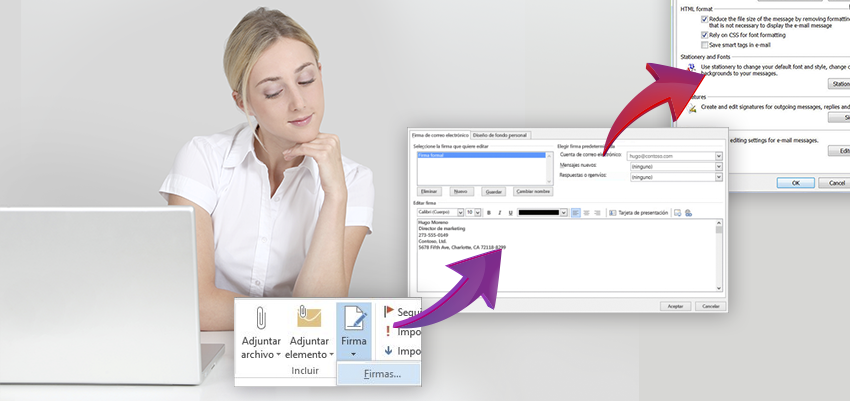
Outlook offers the option to create custom signatures for your emails. If you're tired of typing your name every time you send an email, or simply want to add a personal touch or a small advertisement to each message you send, Outlook is the perfect solution.
FromApen We'll help you do it with the following guide.
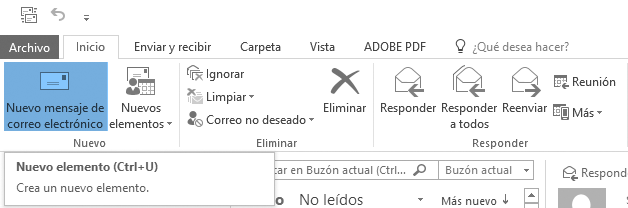
We created a new email message
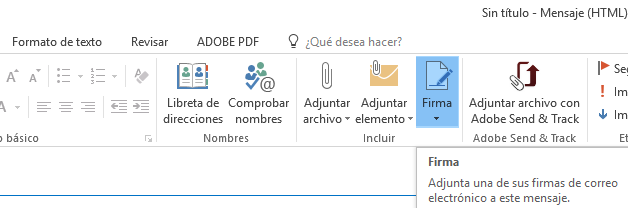
On the tab message, in the group include, we selected signature > signature
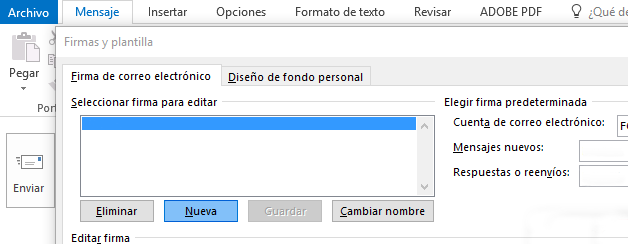
We selected new in the dialog box and type a name for our signature
How to predetermine our signature
In the email account, Next, we select an email account to associate with the signature we are creating. We can have different signatures for each email account.
For the new messages, We will choose the signature we want to automatically add to all new email messages. If we don't want to automatically sign email messages, we have to select the default option (none).
In the replies or forwards, We must select the signature that we will automatically use when replying to or forwarding messages. If we don't want to include our signature in these messages, we must select the default option (none).
In the picture edit signature, We write the content of our signature and accept
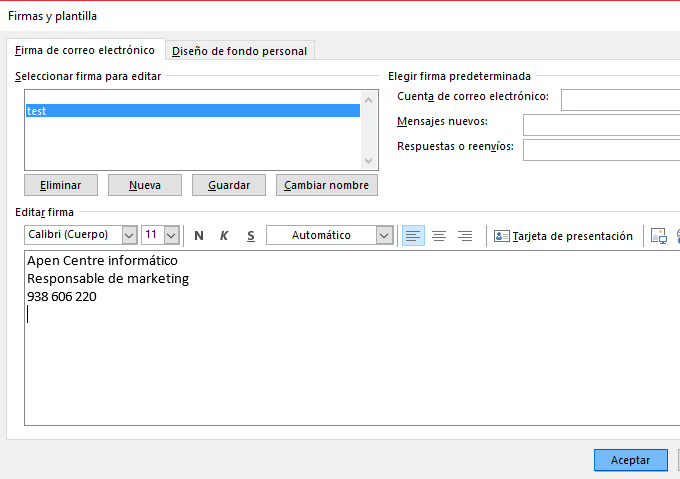
Outlook offers us the possibility of including text, images, our electronic business card, a logo or even an image with our handwritten signature and we can configure it so that signatures are automatically added to all outgoing messages or choose which messages will include a signature.